Start here
Prepare a file
Use a D4 file, or create one from a coordinate-sorted BAM/CRAM with its index. CRAM also needs the matching FASTA and .fai index. See Creating D4 files.
Before comparing files, confirm their reference assembly and processing settings. D4 files do not record the assembly.
Open and inspect
- Install a package from GitHub Releases.
- Choose Open D4 and select one or more files. To convert BAM/CRAM, choose Create D4, then Add to view when it finishes.
- Enter a region such as
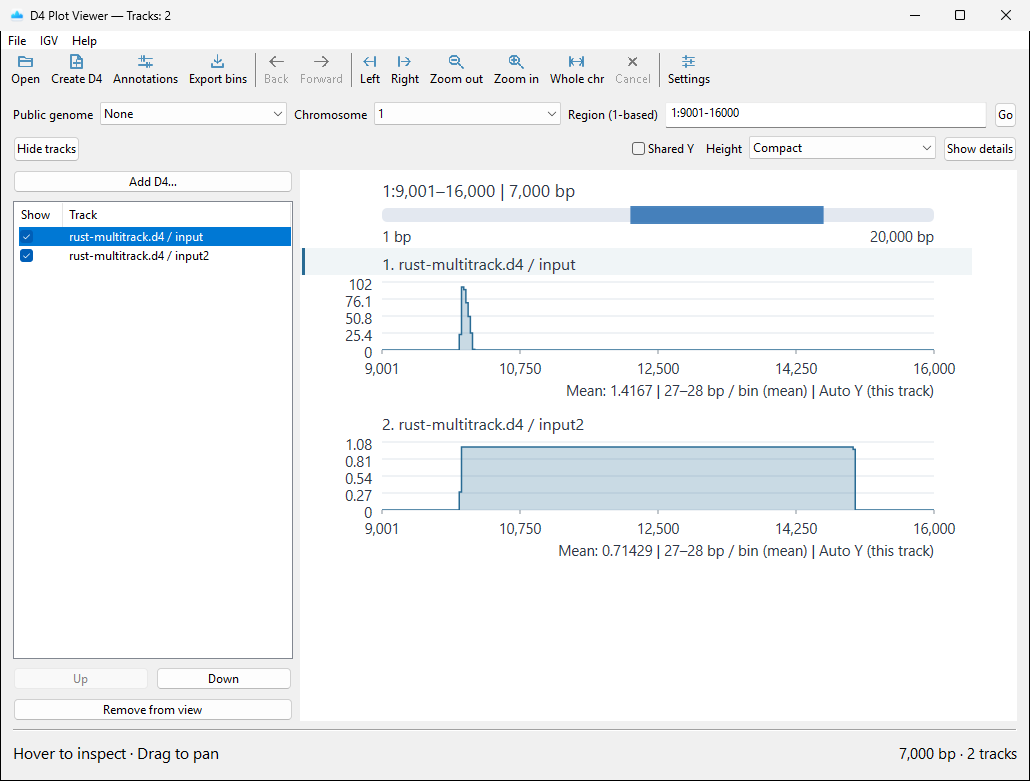
chr1:100000-200000and choose Go. Enter onlychr1to show the chromosome. - Select a track by its title or in the track list. Enable Shared Y to compare heights across tracks.
- Hover over the signal to inspect a bin mean. Zoom in for narrow peaks.
| Windows | macOS | Linux |
|---|---|---|
 |
 |
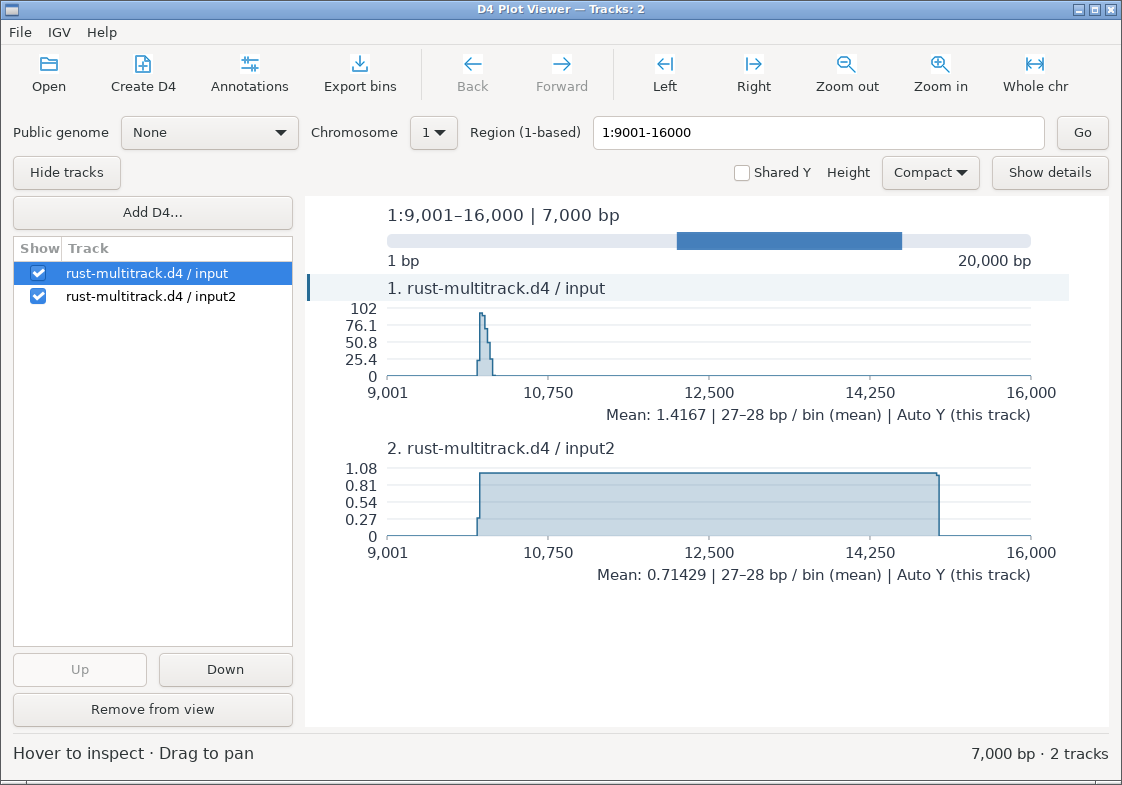 |
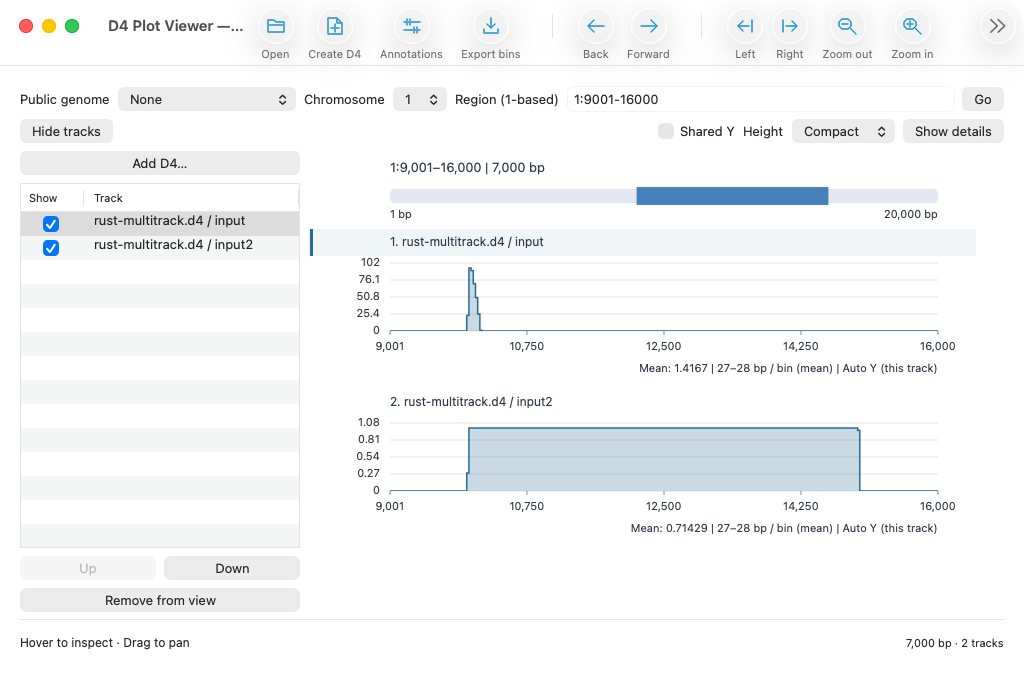
The screenshot uses spec/fixtures/rust-multitrack.d4. Each track has its own Y scale.
Navigate and export
Use Back, Forward, the zoom controls, or Whole chromosome. Drag to pan; Shift-drag or right-drag to select a range. With plot focus, Left/Right pan, +/- zoom, Home shows the chromosome, and Escape cancels a load or drag.
- Add D4 appends tracks.
- Annotations opens a local GFF3, GTF, or BED file. Select public genes from the Public genome list at the beginning of the navigation row.
- Export bins saves the selected track's displayed bin means as bedGraph.
- Save plot as SVG saves all visible tracks and annotations, including rows outside the scrolled viewport.
See Viewing tracks for scales and navigation, and Annotations and export for formats and coordinates.
If a result looks wrong
| Symptom | Check |
|---|---|
| D4 does not open | File exists, is readable, and was fully written. |
| BAM/CRAM conversion fails | Coordinate order, index, and CRAM reference/FAI. |
| Tracks do not align | Assembly and chromosome spelling (chr1 differs from 1). |
| Peak looks flat | Zoom in or increase bin count in Settings. |
| Heights look inconsistent | Use Shared Y or a fixed Y range. |